
Posting a Picture from Photobucket
Discussion


For Pete and anyone else not familiar with how to do it on this site, this isn't the only way to do it but it's a step-by-step guide and it works !
1. Open up one Windows Explorer window for Pistonheads and a second one for Photobucket.
2. In the Pistonheads window write the text of your reply or new topic.
3. Decide where you want the picture to be and create a blank line there
4. Type [pic] at the beginning of that new blank line
5. Go to the Photobucket window and click once in the 'Url' box beneath the picture you want, this will highlight the url as in the image below:
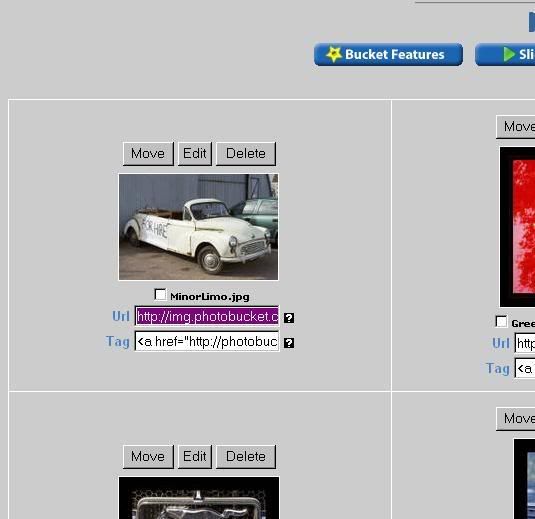
6. Copy the url either by using Ctrl-C or by right-clicking with your mouse and selecting copy from the drop-down menu - whichever you prefer
7. Go back to the Pistonheads window and paste the url next to the [pic] either by using Ctrl-V or by right-clicking.
8. Now type [/pic] after the url
9. Check that the correct picture is shown in your message by clicking on the Preview button. Note that there may be just a blue box followed by a pause of a few seconds while the picture downloads.
That's it. It may look a bit long-winded, but its easier to do than to describe, honest !
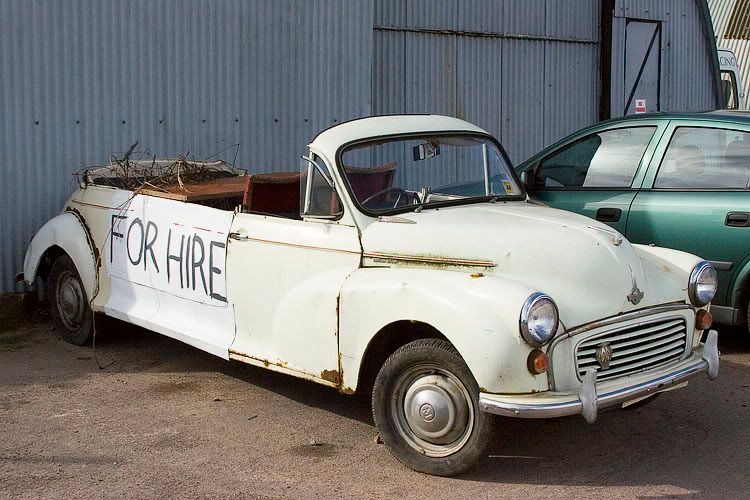
Using the example of Richard's new business venture above, typing the following but without the two spaces at either end of the url...
[pic] http://img.photobucket.com/albums/v69 [/pic]
gives you this:
1. Open up one Windows Explorer window for Pistonheads and a second one for Photobucket.
2. In the Pistonheads window write the text of your reply or new topic.
3. Decide where you want the picture to be and create a blank line there
4. Type [pic] at the beginning of that new blank line
5. Go to the Photobucket window and click once in the 'Url' box beneath the picture you want, this will highlight the url as in the image below:
6. Copy the url either by using Ctrl-C or by right-clicking with your mouse and selecting copy from the drop-down menu - whichever you prefer
7. Go back to the Pistonheads window and paste the url next to the [pic] either by using Ctrl-V or by right-clicking.
8. Now type [/pic] after the url
9. Check that the correct picture is shown in your message by clicking on the Preview button. Note that there may be just a blue box followed by a pause of a few seconds while the picture downloads.
That's it. It may look a bit long-winded, but its easier to do than to describe, honest !
Using the example of Richard's new business venture above, typing the following but without the two spaces at either end of the url...
[pic] http://img.photobucket.com/albums/v69 [/pic]
gives you this:
Edited by te51cle on Sunday 1st October 20:59
Gassing Station | Corvettes | Top of Page | What's New | My Stuff