
Photoshop assitance/advice.
Discussion


Evening guys, was wondering if I could ask a favour.
I've got a photograph of our dog Norman taken in the living room prior to it being decorated. Unfortunately it doesn't make for a good backdrop and I was hoping to have this photo done on canvas for the study. The problem I'm having is that I'm useless at photoshop and everytime I try and get a good outline of Norman to then put him onto a white backdrop I fail miserably. Here's the photo in question:

As you can see, it's not the best photo but I've not got any better of him The problem I'm having is with the detail in his beard, makes for an awkward shape to draw around on a laptop tablet. That and I've pretty poor/basic PS skills.
Could one of you put him onto a white backdrop or offer me some advice about how to grab a better outline of him other than the quick select tool.
Thanks in advance.
I've got a photograph of our dog Norman taken in the living room prior to it being decorated. Unfortunately it doesn't make for a good backdrop and I was hoping to have this photo done on canvas for the study. The problem I'm having is that I'm useless at photoshop and everytime I try and get a good outline of Norman to then put him onto a white backdrop I fail miserably. Here's the photo in question:
As you can see, it's not the best photo but I've not got any better of him
The problem I'm having is with the detail in his beard, makes for an awkward shape to draw around on a laptop tablet. That and I've pretty poor/basic PS skills. Could one of you put him onto a white backdrop or offer me some advice about how to grab a better outline of him other than the quick select tool.
Thanks in advance.
z4chris99 said:
use paths instead of lasso, you'll get a better outline
that said it will be hard with that photo.
just take another photo
I'm thinking I'm going to have to take another photo. Original plan was to get something printed for the 6th but I'll struggle to do that now anyway. It was going to be for me dad's birthday but he's got a couple of presents already so this can be a late one that said it will be hard with that photo.
just take another photo

I would personally use the point to point selection tool. Set the feather to 1px. Be as acurate as you can to follow the outline and hairs etc. Once selected, use the "refine selection" option to smooth out and feather/contrast the selection so it's not edgy.
Make the selection a new layer. Put it onto the new background you want. It will probably look s t.
t.
Now I would go around the edge with the smudge tool on a fine radius and smudge hairs to make the edge blend with the background. Also use of the blur tool to soften the edges up too to make it look more natural.
Work at it and it will look great in the end. Hair is a bh at the best of times and everyone has different ways of dealing with it.
Ps. If you want a canvas, I work for a canvas making company and I do this sort of editing on a daily basis for customers (plus we rarely charge for it...) Message me if you're interested.
Make the selection a new layer. Put it onto the new background you want. It will probably look s
t.Now I would go around the edge with the smudge tool on a fine radius and smudge hairs to make the edge blend with the background. Also use of the blur tool to soften the edges up too to make it look more natural.
Work at it and it will look great in the end. Hair is a b
h at the best of times and everyone has different ways of dealing with it.Ps. If you want a canvas, I work for a canvas making company and I do this sort of editing on a daily basis for customers (plus we rarely charge for it...) Message me if you're interested.
Deluded said:
I would personally use the point to point selection tool. Set the feather to 1px. Be as acurate as you can to follow the outline and hairs etc. Once selected, use the "refine selection" option to smooth out and feather/contrast the selection so it's not edgy.
Make the selection a new layer. Put it onto the new background you want. It will probably look st.
Now I would go around the edge with the smudge tool on a fine radius and smudge hairs to make the edge blend with the background. Also use of the blur tool to soften the edges up too to make it look more natural.
Work at it and it will look great in the end. Hair is a bh at the best of times and everyone has different ways of dealing with it.
Ps. If you want a canvas, I work for a canvas making company and I do this sort of editing on a daily basis for customers (plus we rarely charge for it...) Message me if you're interested.
Hmm sounds pretty good if I can get someone to do a professional job. PM inbound Make the selection a new layer. Put it onto the new background you want. It will probably look s
t.Now I would go around the edge with the smudge tool on a fine radius and smudge hairs to make the edge blend with the background. Also use of the blur tool to soften the edges up too to make it look more natural.
Work at it and it will look great in the end. Hair is a b
h at the best of times and everyone has different ways of dealing with it.Ps. If you want a canvas, I work for a canvas making company and I do this sort of editing on a daily basis for customers (plus we rarely charge for it...) Message me if you're interested.
When they released CS5, Adobe had demos of a tool called 'refine edge' - especially useful when making selections around hair. You may have seen it - it involved removed a white horse from a field of green grass:
http://www.youtube.com/watch?v=vfkjHnsAsvg
In fact someone's doing something with a dog here that uses refine edge:
http://www.youtube.com/watch?v=l5E5ItCC43U
http://www.youtube.com/watch?v=vfkjHnsAsvg
In fact someone's doing something with a dog here that uses refine edge:
http://www.youtube.com/watch?v=l5E5ItCC43U
jonnylarge said:
When they released CS5, Adobe had demos of a tool called 'refine edge' - especially useful when making selections around hair. You may have seen it - it involved removed a white horse from a field of green grass:
http://www.youtube.com/watch?v=vfkjHnsAsvg
In fact someone's doing something with a dog here that uses refine edge:
http://www.youtube.com/watch?v=l5E5ItCC43U
My version of CS3 I have at home has Refine Edge.http://www.youtube.com/watch?v=vfkjHnsAsvg
In fact someone's doing something with a dog here that uses refine edge:
http://www.youtube.com/watch?v=l5E5ItCC43U
Depending what I'm tying to cut out, I sometimes use the eraser tool whilst zoomed in, with a soft edged brush, the magnetic lasoo tool on images with more defined, straight edges, or 'paint it out' with a layer mask.
There are plenty of good tutorials on the net but the secret really is just patience, and practice tbh
There are plenty of good tutorials on the net but the secret really is just patience, and practice tbh
I've decided that with my limited skills I'll try and get a better photo after all. The advice is greatly appreciated though, I'll be using it when I've got photographs that don't involve so much hair
Thanks again chaps, I'll post up the new photo when I get the chance to take it, bloody dog never sits still long enough!
Thanks again chaps, I'll post up the new photo when I get the chance to take it, bloody dog never sits still long enough!


Simpo Two said:
Or a black background might show up the dog better, like this one wot I took of a friend's puppy:
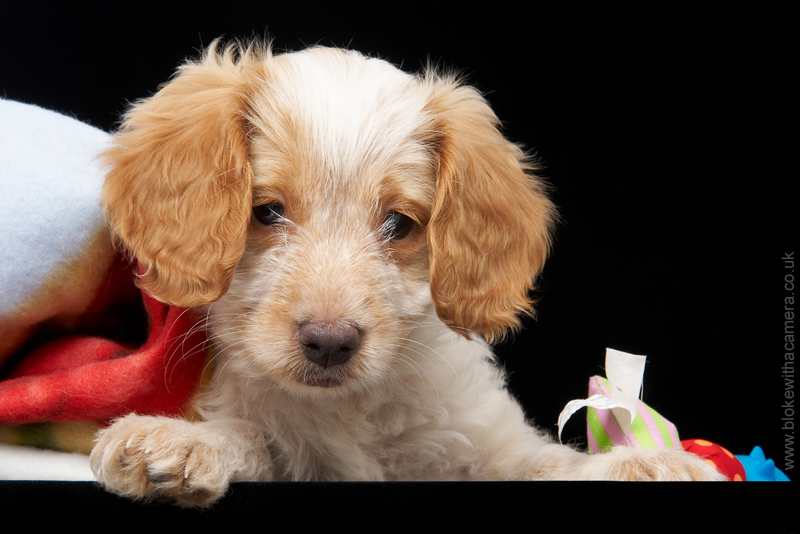
Hmm, did you have proper lighting for that though, unfortunately for me my options in that regard are limited. I'll try a black background as I think it would work better.The reason my own photo is blurry is mostly due to cropping it considerably, it was a s
te photo that I just took when fiddling about with the camera I'll try and get one of Norman out and about in the garden with as little clutter behind him as possible, I'm sure I can find something to make a black backdrop out of.
Gassing Station | Photography & Video | Top of Page | What's New | My Stuff