
Time collapse photo - how do you do it?
Discussion


Hi guys,
Wanting to do something similar to this:
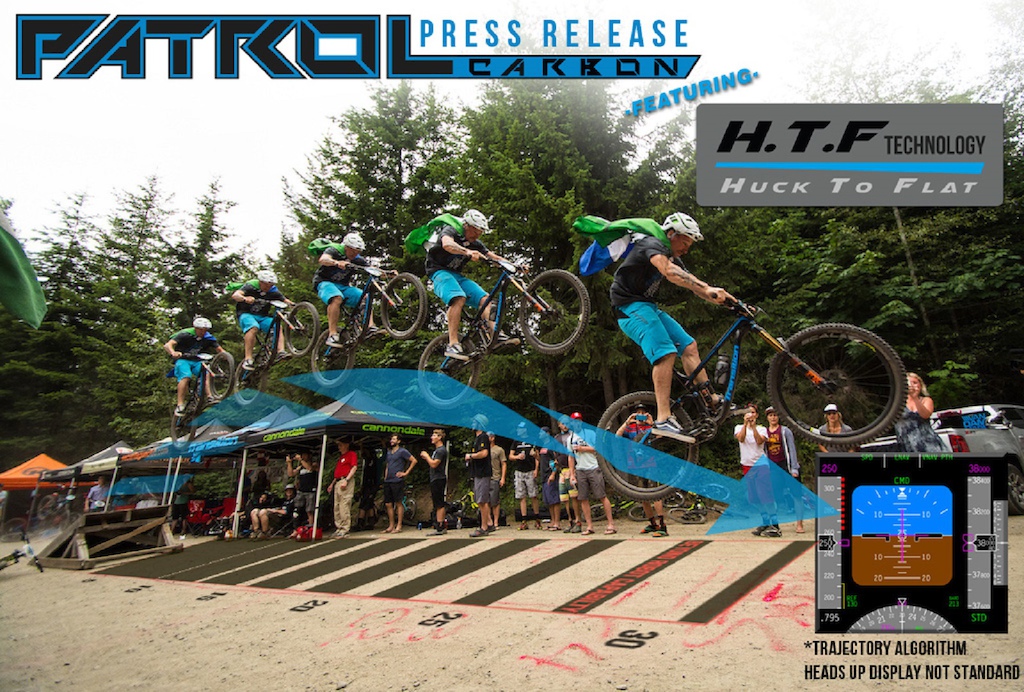
Can get the series of images from my gopro or can set up my camera and do a burst of shots, but not sure what to do afterwards.
How's the best way to do it in photoshop (Elements 11)?
I assume you put each photo on a separate layer - but how do you get the images to show through? Is it a case of erasing areas to expose the image underneath?
Thanks
Wanting to do something similar to this:
Can get the series of images from my gopro or can set up my camera and do a burst of shots, but not sure what to do afterwards.
How's the best way to do it in photoshop (Elements 11)?
I assume you put each photo on a separate layer - but how do you get the images to show through? Is it a case of erasing areas to expose the image underneath?
Thanks
Woody said:
I assume you put each photo on a separate layer - but how do you get the images to show through? Is it a case of erasing areas to expose the image underneath?
Yes, the tool you'll be wanting to use is called the 'layer mask', this masks out a bit of the top layer so what's underneath shows through without actually erasing anything of the upper layer.I'm at work so can't do much digging, but this
https://www.youtube.com/watch?v=1pxycUid-Fg
Looks like it explains the principle simply (I hope!), then you can expand that to use on your layers.
You don't even need a layer mask, just pile the images up on top of each other and erase through. You can set the opacity of the top layer to, say, 50% if you need to see where you're going (but Ctrl/Z is easy enough if you erase too much).
The tricky bit might be people moving in the background, which might need some care.
ETA: 'Trajectory algorithm'?
The tricky bit might be people moving in the background, which might need some care.
ETA: 'Trajectory algorithm'?
I would go the layer mask route as well, but as I placed a new layer on top of previous ones, I would add a layer mask filled with black. Then just fill the layer mask with white where there are parts of the new layer that you want to include.
Where there is only a small piece required from each image, a bike in the example used in the OP's post, I find it easier to paint to include that part, rather than paint to erase everything I don't want.
Where there is only a small piece required from each image, a bike in the example used in the OP's post, I find it easier to paint to include that part, rather than paint to erase everything I don't want.
Edited by DIW35 on Wednesday 23 December 09:04
Gassing Station | Photography & Video | Top of Page | What's New | My Stuff