
contrast, levels and white balance
Discussion


afternoon all.
went out today to experiment with some photography ideas because i havent been out for a while. Although the light was really bad, some of the pictures have atleast made me think. one thing i now need clarification on is white balance, contrast and levels. i have chosen 1 picture from today to illustrate my point:
this is the original picture as it came out of the camera (Nikon D70s) just resized:

this is that picture after it has been "auto-contrasted" in photoshop 6:

(the colours in this are closest to the actual colours in real life)
this is the pic with "auto-levels" in photoshop 6:

the huge variation in these three pics has made me wonder about what settings i should have the camera on. i realise that the original pic is probably overexposed, so part of the photoshopping is reducing that, but the "auto-levelled" picture is so much more defined than the original that i feel that maybe the camera's white balance was not set correctly.
i have never looked into white balance and have never experimented with changing it. could someone please explain it and how i should know what it should be like.
cheers in advance
went out today to experiment with some photography ideas because i havent been out for a while. Although the light was really bad, some of the pictures have atleast made me think. one thing i now need clarification on is white balance, contrast and levels. i have chosen 1 picture from today to illustrate my point:
this is the original picture as it came out of the camera (Nikon D70s) just resized:
this is that picture after it has been "auto-contrasted" in photoshop 6:
(the colours in this are closest to the actual colours in real life)
this is the pic with "auto-levels" in photoshop 6:
the huge variation in these three pics has made me wonder about what settings i should have the camera on. i realise that the original pic is probably overexposed, so part of the photoshopping is reducing that, but the "auto-levelled" picture is so much more defined than the original that i feel that maybe the camera's white balance was not set correctly.
i have never looked into white balance and have never experimented with changing it. could someone please explain it and how i should know what it should be like.
cheers in advance
The white balance is there to avoid colour casts on you image. For example if you had used your outdoors white balance setting while taking a picture indoors under normal room (tungsten) lighting you would have got an orange cast in your image like this:

Conversely if you had used the indoors white balance setting whilst taking a picture outdoors you would have got a blue cast on your image like this:

You may also notice green colour casts under fluorescent lighting. Anyway, it looks to me as if your white balance is set correctly, but there is a problem that you have correctly identified in that the image is over-exposed so you may want to check how you are metering and attend to that first before touching the colours.
The "auto" settings in Photoshop etc. make assumptions about the image content and then try to adjust the image in a fairly arbitrary way, when they work its wonderful but with some images they can just go completely haywire so take their interpretations of your image with a pinch of salt. Try going in to levels, clicking once on the middle grey eye-dropper tool in the levels box, then click on various parts of your image and watch the results as they change. When you click on somewhere that is a neutral grey then the image should look right. You could try with the white and black eyedroppers too.
>> Edited by te51cle on Saturday 11th March 18:00
Conversely if you had used the indoors white balance setting whilst taking a picture outdoors you would have got a blue cast on your image like this:
You may also notice green colour casts under fluorescent lighting. Anyway, it looks to me as if your white balance is set correctly, but there is a problem that you have correctly identified in that the image is over-exposed so you may want to check how you are metering and attend to that first before touching the colours.
The "auto" settings in Photoshop etc. make assumptions about the image content and then try to adjust the image in a fairly arbitrary way, when they work its wonderful but with some images they can just go completely haywire so take their interpretations of your image with a pinch of salt. Try going in to levels, clicking once on the middle grey eye-dropper tool in the levels box, then click on various parts of your image and watch the results as they change. When you click on somewhere that is a neutral grey then the image should look right. You could try with the white and black eyedroppers too.
>> Edited by te51cle on Saturday 11th March 18:00
It's worth pointing out that WB is not about exposure but colour temperature.
As already mentioned, when the camera is set to do things automatically it makes assumptions that the scene in front of it is 'average'. If it's not, eg yours is very light, it will get it wrong and that's when you need to take some control and straighten it out, ideally in camera.
As already mentioned, when the camera is set to do things automatically it makes assumptions that the scene in front of it is 'average'. If it's not, eg yours is very light, it will get it wrong and that's when you need to take some control and straighten it out, ideally in camera.
simpo two said:
it will get it wrong and that's when you need to take some control and straighten it out, ideally in camera.
Idealy in camera? Shouldnt you be shooting RAW and not giving a stuff about white balance in the camera? You'll record what the camera thinks is correct but you can always change it later.
robdickinson said:
Idealy in camera? Shouldnt you be shooting RAW and not giving a stuff about white balance in the camera? You'll record what the camera thinks is correct but you can always change it later.
For WB I agree; I leave mine on Auto WB nearly all the time. However I meant automatic settings in general. Yes, you can change WB in processing if you shoot RAW, but there is no substitute for getting the exposure correct when you take the photograph. Even RAW files cannot restore detail to clipped whites and boosting shadows increases noise. The more right it is when you press the button, the more right it will be at the end, and you can save a lot of processing time too.
robdickinson said:
Idealy in camera? Shouldnt you be shooting RAW and not giving a stuff about white balance in the camera? You'll record what the camera thinks is correct but you can always change it later.
Indeed, along with sharpening and noise reduction.
simpo two said:
Even RAW files cannot restore detail to clipped whites and boosting shadows increases noise.
[parrotmodeon] Oh yes they can. You can lead a horse to water..... sighs: [parrotmodeoff] :
A good example I can think of is the shot of Steve's (luca brazzi), pic of his Tuscan he posted a few years back. He posted the JPG and the RAW in this thread. He doesn't have the pics up any more but I'm sure you remember how much detail I was able to pull out of the 'overexposed' sky in the RAW sample?

Yes, JPGs are fine for a vast majority of 'snaps' under 'normal' lighting situations when you get the exposure right. But. when you need to make larger adjustments for a tricky shot, or you care about the ultimate quality of your shot/file, RAW offers waaaaaaaaaaaaay more latitude. Trust me, I'm a doctor
 .
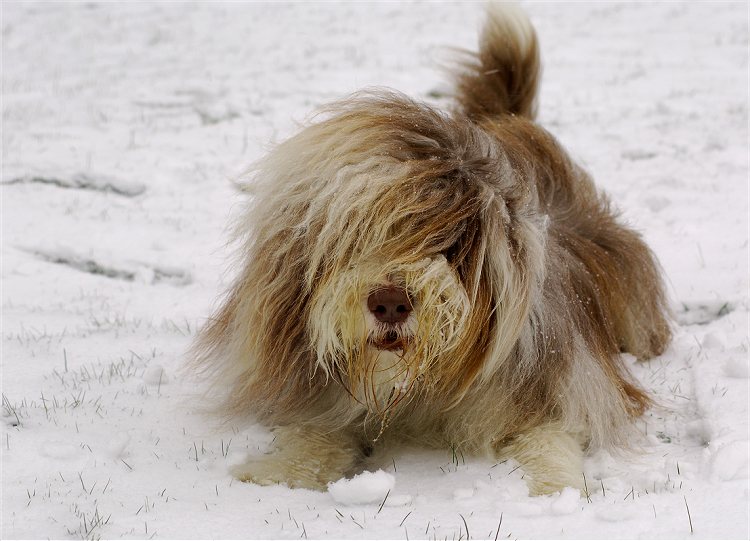
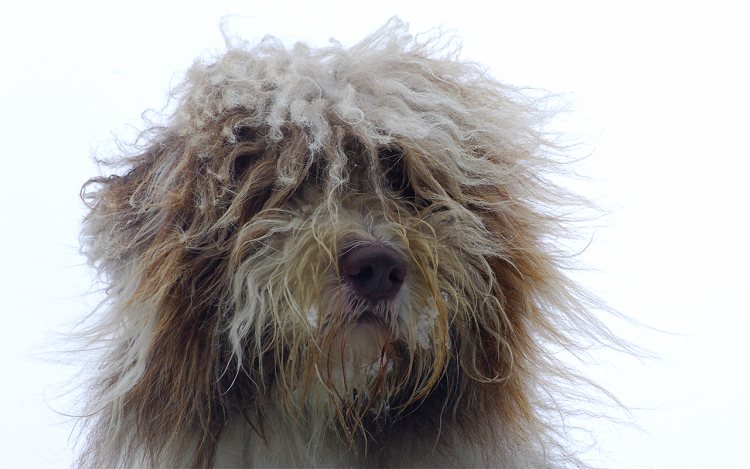
. Steve, are you sure Charlie's a Bearded Collie? The one I saw on Crufts the other night had a much nicer hair do
 .
. >> Edited by Bacardi on Sunday 12th March 14:03
I didn't mention JPGs; that's not an issue. But I'd still rather get the exposure right in camera, if possible, if for no other reason than it takes a few seconds to dial in +/- EV, whilst poking images about in the RAW processor of your choice takes longer. The closer to good it is to start with, the less farting about you have to do later
Note: By 'clipped highlights' I mean 255/255/255. I do not believe it is possible to extract any details from that circumstance. If however a RAW processor that I have yet to meet allows me to extract a perfect image from either total white or total black, I shall just set the camera to 'Random', or maybe just leave the lenscap on for protection and make it all perfect back at the PC. However, I'm not sure what that has to do with photography.
>> Edited by simpo two on Sunday 12th March 15:29
Note: By 'clipped highlights' I mean 255/255/255. I do not believe it is possible to extract any details from that circumstance. If however a RAW processor that I have yet to meet allows me to extract a perfect image from either total white or total black, I shall just set the camera to 'Random', or maybe just leave the lenscap on for protection and make it all perfect back at the PC. However, I'm not sure what that has to do with photography.
>> Edited by simpo two on Sunday 12th March 15:29
te51cle said:
The "auto" settings in Photoshop etc. make assumptions about the image content and then try to adjust the image in a fairly arbitrary way, when they work its wonderful but with some images they can just go completely haywire so take their interpretations of your image with a pinch of salt.
>> Edited by te51cle on Saturday 11th March 18:00
The problem with the default auto levels in PS is that it takes each colour channel and levels it with a 10% clip on both highlights and shadows. This is why the results can look horrendous with a definite coulor balance shift. It is much more reliable to change the default settings to "enhance monochromatic contrast" and set the clipping to 0% for both highlights and shadows. Results keep the colour balance of the image and then plat about with the contrast and colour temperature. You can then set it up as an action or droplet and know the results ate going to be as expected.
simpo two said:
I didn't mention JPGs
No, but you mentioned RAW, which by implication means the alternative is JPG
. simpo two said:
why do we worry about histograms
You can answer yourself:
simpo two said:
The more right it is when you press the button, the more right it will be at the end
Putting all aesthetic and compositional considerations aside, a pictures technical quality is made up up from links in a chain. For a given budget, one chooses the best camera/sensor one can afford and then put the best lenses on it. Picking the right aperture/shutter combination for the job in hand is just another link as is RAW processing. Using the histogram to check the exposure ensure that you are in the middle of the range, the best starting point to make any adjustments.
255/255/255 isn't a clipped highlight it's just white and no RAW processor can recover detail in really badly overexposed snow, for example. Or 0/0/0 coal in a coal cellar at night. Clipped highlights are, as rex mentions, something that PS will do for you, another good reason to get it right in a RAW processor to start with. Be careful with auto check boxes, they assume an 'average' scene from black to white. They don't work with high key subjects with nothing but light tones in. Don't confuse clipped highlights with specular highlights, like the water in the above pics, these need to blow out or the pic would look flat.
 Guess you've got some "white-out balance" up in your neck of the woods at the mo......
Gassing Station | Photography & Video | Top of Page | What's New | My Stuff