
Is there a hard drive missing in this PC?
Discussion


Can someone please confirm if theres a second hard drive in my sons PC?
I bought him a gaing PC last year which we specced ourselves, to include a 500gb SSD and a 2TB Baraccuda HD.
He's only just got around to trying to store stuff on the 2TB drive, but it doesn't appear on the PC menu. I'm hoping it's inside the PC but just not connected. If it's there, where do we connect it?
Heres a photo of his screen, showing just one local hard drive..

And photos of inside his PC....


I bought him a gaing PC last year which we specced ourselves, to include a 500gb SSD and a 2TB Baraccuda HD.
He's only just got around to trying to store stuff on the 2TB drive, but it doesn't appear on the PC menu. I'm hoping it's inside the PC but just not connected. If it's there, where do we connect it?
Heres a photo of his screen, showing just one local hard drive..
And photos of inside his PC....
The second to last picture shows what looks like a hard drive caddy, and can just about make out two SATA ports with cables. Assume 1 is for the SSD, and the 2nd is either the 2TB or front panel connector (e-SATA)?
If you click start and type 'computer management' and open the App it will open a window, on the left hand side there will be a item called 'Storage' with 'Disk Management' if you click on 'Disk Management' it will list all the drives the PC can 'see' and indicate if the storage volumes are active.

If you click start and type 'computer management' and open the App it will open a window, on the left hand side there will be a item called 'Storage' with 'Disk Management' if you click on 'Disk Management' it will list all the drives the PC can 'see' and indicate if the storage volumes are active.
Are they not drive bays behind the PSU?
In reality, its going to be hard for anyone to diagnose over the internet, whereas in person it would be a 2 second job to see if one is there, and if so maybe the wire fell off in transit or something? Take it to a shop and it'll save you hours of poking around.
In reality, its going to be hard for anyone to diagnose over the internet, whereas in person it would be a 2 second job to see if one is there, and if so maybe the wire fell off in transit or something? Take it to a shop and it'll save you hours of poking around.


Yes, even if the drive is plugged in, make sure it has a power connector going into it as well, otherwise the computer won't see it. Also in the BIOS there might be a setting to disable the drive so that Windows will never see it. Go through all the storage options labelled Storage or RAID. It's possible that your motherboard has an onboard RAID controller which the drive is connected to, but the RAID controller is disabled. Or possibly it's enabled meaning you might need a special RAID driver to be installed before the disk will show up. Or that you need to configure a RAID logical volume before anything will show up. With only one drive (excluding the SSD) RAID is not going to do you any good so best to try to disable it. Doing that should allow the port to be used as a normal SATA connection meaning the drive will then appear in Disk Management with no extra drivers required. You'll likely still need to create a simple volume in Windows before it will appear in My Computer as a drive letter.
If in doubt, let's see photos of what you see in the BIOS screens.
If in doubt, let's see photos of what you see in the BIOS screens.
Drive Blind said:
take the cover off the other side of the chassis and verify the hdd has both cables plugged in
There should be a larger power cable and a smaller data cable
like this
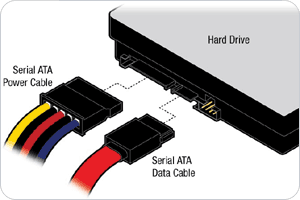
Just for full disclosure, the "wide" one on that picture is one that goes to the power supply (aka PSU). If you find an extra one that fits, can't go wrong. There should be a larger power cable and a smaller data cable
like this
The small one (data) connects to your motherboard (MB).
It seems like there's two connected on the MB already, one might be a DVD drive? If you don't have a dvd drive, it will probably go to the HDD (green square):

The red one are two unused ones
There's a "hook" in both the power and data cable, look at the connector and just plug them in.
In theory should be very straightforward, but you might not have the Data cable (called "SATA" cable). Any self-respecting nerd should have a small box of those, see if you can have one for a fiver.
LeadFarmer said:
I’ve never entered bios settings before. If I’ve navigated correctly so far, which option do I take here? I expected to see an option for ‘UEFI Firmware Settings’

That's Windows diagnostic screen.You usually need to press F2/F10 (or whatever the mobo manufactuer uses) at start-up to go into the PC's BIOS settings.
Gassing Station | Computers, Gadgets & Stuff | Top of Page | What's New | My Stuff