
Upgrade WiFi Mesh System
Discussion


I have an ASUS ZenWiFi XT8 AX6600 Whole-Home Tri-Band Mesh WiFi 6 System (2 Pack), Coverage Up to 5500 sq ft or 510 m or 6+ Rooms, 6.6 Gbps WiFi, 3 SSIDs, 2.5G Port, White
Paired with VM 1Gig Broadband. However the speeds when connected via Ethernet are really low less than 100Mbps Download and 80Mbps Upload.
Any suggestions on how I can improve this?
Paired with VM 1Gig Broadband. However the speeds when connected via Ethernet are really low less than 100Mbps Download and 80Mbps Upload.
Any suggestions on how I can improve this?
Justadreamer said:
I have an ASUS ZenWiFi XT8 AX6600 Whole-Home Tri-Band Mesh WiFi 6 System (2 Pack), Coverage Up to 5500 sq ft or 510 m or 6+ Rooms, 6.6 Gbps WiFi, 3 SSIDs, 2.5G Port, White?
Paired with VM 1Gig Broadband. However the speeds when connected via Ethernet are really low less than 100Mbps Download and 80Mbps Upload.
Any suggestions on how I can improve this?
I have the same and it's really quick on WiFi (650-750Mbps down) so it's a configuration issue somewhere.Paired with VM 1Gig Broadband. However the speeds when connected via Ethernet are really low less than 100Mbps Download and 80Mbps Upload.
Any suggestions on how I can improve this?
Are you certain the ethernet cable is cat5e or better? All ports are definitely gigabit, not 100mbit? Have you set up the mesh backhaul to use the second 5Ghz link as a dedicated channel? Is the device you're testing the speed from limited to 100mbps for some reason?
If you decide to bail out of it and get something else please let me know though as I'm moving home and thinking I might need to extend my setup a little so a couple more of these would be ideal...!

Edited by Funk on Sunday 21st June 23:32
Funk said:
I have the same and it's really quick on WiFi (650-750Mbps down) so it's a configuration issue somewhere.
Are you certain the ethernet cable is cat5e or better? All ports are definitely gigabit, not 100mbit? Have you set up the mesh backhaul to use the second 5Ghz link as a dedicated channel? Is the device you're testing the speed from limited to 100mbps for some reason?
If you decide to bail out of it and get something else please let me know though as I'm moving home and thinking I might need to extend my setup a little so a couple more of these would be ideal...!
All settings are correct and the cable was a brand new Cat5e patch cable. Are you certain the ethernet cable is cat5e or better? All ports are definitely gigabit, not 100mbit? Have you set up the mesh backhaul to use the second 5Ghz link as a dedicated channel? Is the device you're testing the speed from limited to 100mbps for some reason?
If you decide to bail out of it and get something else please let me know though as I'm moving home and thinking I might need to extend my setup a little so a couple more of these would be ideal...!
Edited by Funk on Sunday 21st June 23:32
Justadreamer said:
Full Fibre with the upgraded cable.
If its full fibre, then your running the 5x which doesn't have a modem only mode (physically not in the GUI), you can crack them, but in order for it to work properly, it needs not to be in Modem mode, as Virgin cant see the correct details, and monitor that its working correctly on the Network, so if you are definitely on Full Fibre, and Not FTTP (you will have a powered box and then Coax from that box if your on FTTP) then that's likely your problem.No, your either on FTTP, which will be fibre to a powered box at the property, and then Coax from there, or your on the HFC which is Fibre to the cab, then COAX from the cab to the house, both of which is capable of 10gbps download speeds, so 1gig is no issues on the network your on.
The first port of call would be to factory reset the hub, and then runs a speed test both over wifi, and via ethernet to see what the speeds are, if the speeds are fine, then you would need to look at your mesh system.
The first port of call would be to factory reset the hub, and then runs a speed test both over wifi, and via ethernet to see what the speeds are, if the speeds are fine, then you would need to look at your mesh system.
Smurfsarepeopletoo said:
No, your either on FTTP, which will be fibre to a powered box at the property, and then Coax from there, or your on the HFC which is Fibre to the cab, then COAX from the cab to the house, both of which is capable of 10gbps download speeds, so 1gig is no issues on the network your on.
The first port of call would be to factory reset the hub, and then runs a speed test both over wifi, and via ethernet to see what the speeds are, if the speeds are fine, then you would need to look at your mesh system.
I have factory reset it previously. Each one of the Mesh is not set as an AP. Each are set as Wireless Router Mode. The first port of call would be to factory reset the hub, and then runs a speed test both over wifi, and via ethernet to see what the speeds are, if the speeds are fine, then you would need to look at your mesh system.
I think you need them set as APs if you're using the VM box as the router. That's how mine are.
Also make sure that if you're using the VM router's original SSID on the Asus kit, you've turned off the WiFi on the VM router. Otherwise you'll have both the Asus and the VM hub trying to broadcast the same SSID.
Also make sure that if you're using the VM router's original SSID on the Asus kit, you've turned off the WiFi on the VM router. Otherwise you'll have both the Asus and the VM hub trying to broadcast the same SSID.
Funk said:
I think you need them set as APs if you're using the VM box as the router. That's how mine are.
Also make sure that if you're using the VM router's original SSID on the Asus kit, you've turned off the WiFi on the VM router. Otherwise you'll have both the Asus and the VM hub trying to broadcast the same SSID.
It’s off on the VM Hub. I’ve tried the AP but it messed the whole Mesh System. Also make sure that if you're using the VM router's original SSID on the Asus kit, you've turned off the WiFi on the VM router. Otherwise you'll have both the Asus and the VM hub trying to broadcast the same SSID.
So the VM hub is in modem mode - this means that one of your mesh units should be connected by Cat 5 to the VM hub in the right LAN port at the back (port 1 on mine). Wifi on the VM should be off - can't remember if it get turns off automatically when you put it in modem mode.
The Asus unit connected to the VM modem needs to be configured as the master that does all the routing/firewall/NAT/DHCP etc. The other Asus unit should be in mesh mode to act as a repeater for the wifi.
I have VM unit is modem mode -> Asus router (wifi off) -> Mercusys mesh and I am getting all 350mb download speed I pay for over wifi but with wired backhaul for the mesh system.
The Asus unit connected to the VM modem needs to be configured as the master that does all the routing/firewall/NAT/DHCP etc. The other Asus unit should be in mesh mode to act as a repeater for the wifi.
I have VM unit is modem mode -> Asus router (wifi off) -> Mercusys mesh and I am getting all 350mb download speed I pay for over wifi but with wired backhaul for the mesh system.
Rather than jumping around trying random things, take a step by step approach to work through what you have and try an identify where the problem is.
I'd suggest;
1.
Disconnect and power off all the Asus kit, have only the VM modem, factory reset it, connect to it's wifi and measure the speeds.
If this is not the speed you accept then it's the VM modem, or VM cabling or VM account.
If ok, then next step.
2.
Connect only the 'main' Asus router by ethernet cable to the VM hub and power on the Asus router. Leave the VM hub in it's default setup (ie don't put to modem mode yet). Factory reset the Asus router. Connect to the Asus router wifi and measure the speeds.
3.
Change the VM router to modem mode and then check again the speeds on the Asus wifi.
4.
Configure whatever wifi settings on the Asus you want (eg wifi name, password, etc) and check speeds again.
5.
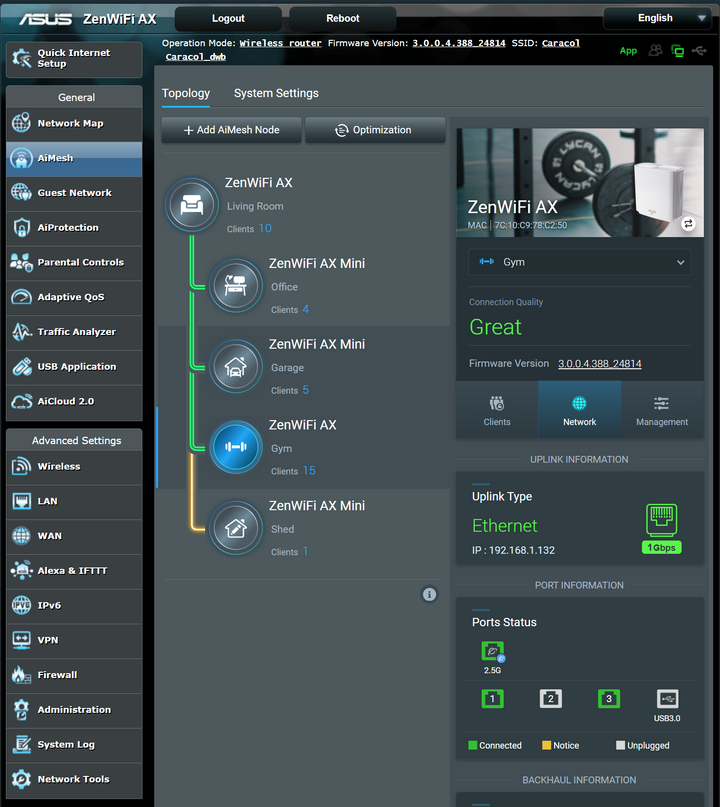
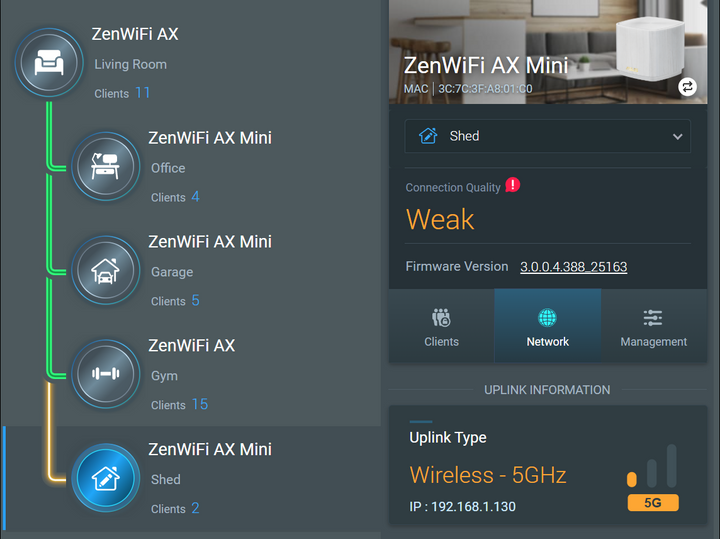
Add a mesh node. Check in the Asus settings page under AiMesh and click on the mesh node then Network on the right hand pane. Check it shows uplink type is Ethernet and 1Gbps. You can see this below, and below that is an example of a poor backhaul connection in orange as it has no cable backhaul and is far away from the base unit. Connect to the mesh node wifi and check the speed. You can confirm that you are connected to the mesh node and not the base unit by looking at the Clients list in that setting page - you can see the clients on each individual mesh node.
6.
Keep adding mesh nodes and checking until they are all ok.
I'd suggest;
1.
Disconnect and power off all the Asus kit, have only the VM modem, factory reset it, connect to it's wifi and measure the speeds.
If this is not the speed you accept then it's the VM modem, or VM cabling or VM account.
If ok, then next step.
2.
Connect only the 'main' Asus router by ethernet cable to the VM hub and power on the Asus router. Leave the VM hub in it's default setup (ie don't put to modem mode yet). Factory reset the Asus router. Connect to the Asus router wifi and measure the speeds.
3.
Change the VM router to modem mode and then check again the speeds on the Asus wifi.
4.
Configure whatever wifi settings on the Asus you want (eg wifi name, password, etc) and check speeds again.
5.
Add a mesh node. Check in the Asus settings page under AiMesh and click on the mesh node then Network on the right hand pane. Check it shows uplink type is Ethernet and 1Gbps. You can see this below, and below that is an example of a poor backhaul connection in orange as it has no cable backhaul and is far away from the base unit. Connect to the mesh node wifi and check the speed. You can confirm that you are connected to the mesh node and not the base unit by looking at the Clients list in that setting page - you can see the clients on each individual mesh node.
6.
Keep adding mesh nodes and checking until they are all ok.
eein said:
Rather than jumping around trying random things, take a step by step approach to work through what you have and try an identify where the problem is.
I'd suggest;
1.
Disconnect and power off all the Asus kit, have only the VM modem, factory reset it, connect to it's wifi and measure the speeds.
If this is not the speed you accept then it's the VM modem, or VM cabling or VM account.
If ok, then next step.
2.
Connect only the 'main' Asus router by ethernet cable to the VM hub and power on the Asus router. Leave the VM hub in it's default setup (ie don't put to modem mode yet). Factory reset the Asus router. Connect to the Asus router wifi and measure the speeds.
3.
Change the VM router to modem mode and then check again the speeds on the Asus wifi.
4.
Configure whatever wifi settings on the Asus you want (eg wifi name, password, etc) and check speeds again.
5.
Add a mesh node. Check in the Asus settings page under AiMesh and click on the mesh node then Network on the right hand pane. Check it shows uplink type is Ethernet and 1Gbps. You can see this below, and below that is an example of a poor backhaul connection in orange as it has no cable backhaul and is far away from the base unit. Connect to the mesh node wifi and check the speed. You can confirm that you are connected to the mesh node and not the base unit by looking at the Clients list in that setting page - you can see the clients on each individual mesh node.
6.
Keep adding mesh nodes and checking until they are all ok.
Yep that’s how I’d go about it.I'd suggest;
1.
Disconnect and power off all the Asus kit, have only the VM modem, factory reset it, connect to it's wifi and measure the speeds.
If this is not the speed you accept then it's the VM modem, or VM cabling or VM account.
If ok, then next step.
2.
Connect only the 'main' Asus router by ethernet cable to the VM hub and power on the Asus router. Leave the VM hub in it's default setup (ie don't put to modem mode yet). Factory reset the Asus router. Connect to the Asus router wifi and measure the speeds.
3.
Change the VM router to modem mode and then check again the speeds on the Asus wifi.
4.
Configure whatever wifi settings on the Asus you want (eg wifi name, password, etc) and check speeds again.
5.
Add a mesh node. Check in the Asus settings page under AiMesh and click on the mesh node then Network on the right hand pane. Check it shows uplink type is Ethernet and 1Gbps. You can see this below, and below that is an example of a poor backhaul connection in orange as it has no cable backhaul and is far away from the base unit. Connect to the mesh node wifi and check the speed. You can confirm that you are connected to the mesh node and not the base unit by looking at the Clients list in that setting page - you can see the clients on each individual mesh node.
6.
Keep adding mesh nodes and checking until they are all ok.
However a couple of points to do before.
I’d see if I can backup the asus device to keep your config
And I’d try doing a Ethernet connection to the master asus and check the wired speed
Gassing Station | Computers, Gadgets & Stuff | Top of Page | What's New | My Stuff