
Google Maps tips & tricks
Discussion


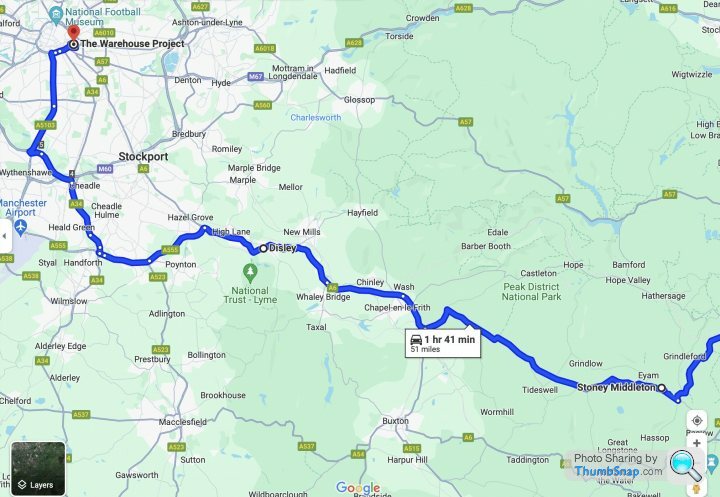
I like using Google Maps, especially creating my routes on my laptop at home and sending them to my phone for when I set off.
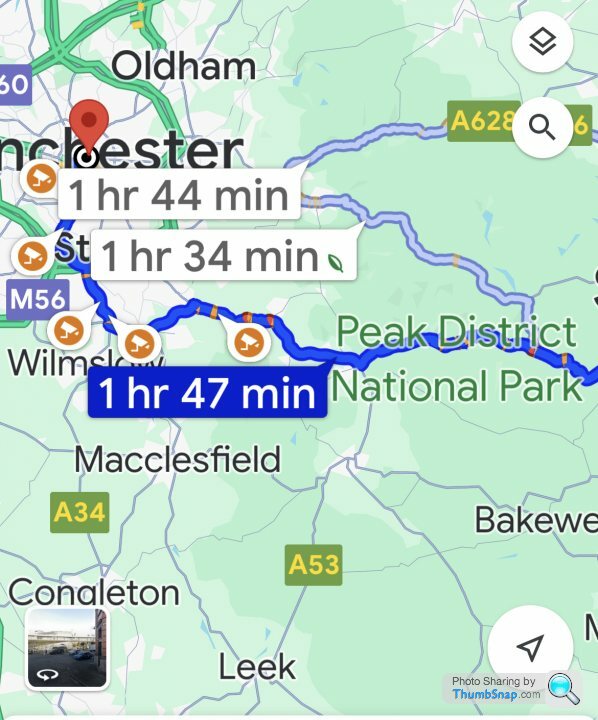
However when creating the route, if I set different way markers/destinations to go via, when I then add my final destination and send it to my phone I instead receive Googles default preferred route. Is there a way of sending the route I have created?
Route created on laptop..
Route received on phone (looks similar but isn't when you zoom in)
However when creating the route, if I set different way markers/destinations to go via, when I then add my final destination and send it to my phone I instead receive Googles default preferred route. Is there a way of sending the route I have created?
Route created on laptop..
Route received on phone (looks similar but isn't when you zoom in)
Edited by The Gauge on Thursday 23 November 14:24
No, never heard of that, but thanks.
Just had a look and was able to create a route and send it via text to myself. When I open it on my phone I can see the route but there's no way of navigating along it. Was hoping to see the usual 'Start' icon to start driving there.
Just had a look and was able to create a route and send it via text to myself. When I open it on my phone I can see the route but there's no way of navigating along it. Was hoping to see the usual 'Start' icon to start driving there.
Edited by The Gauge on Thursday 23 November 15:50
Riley Blue said:
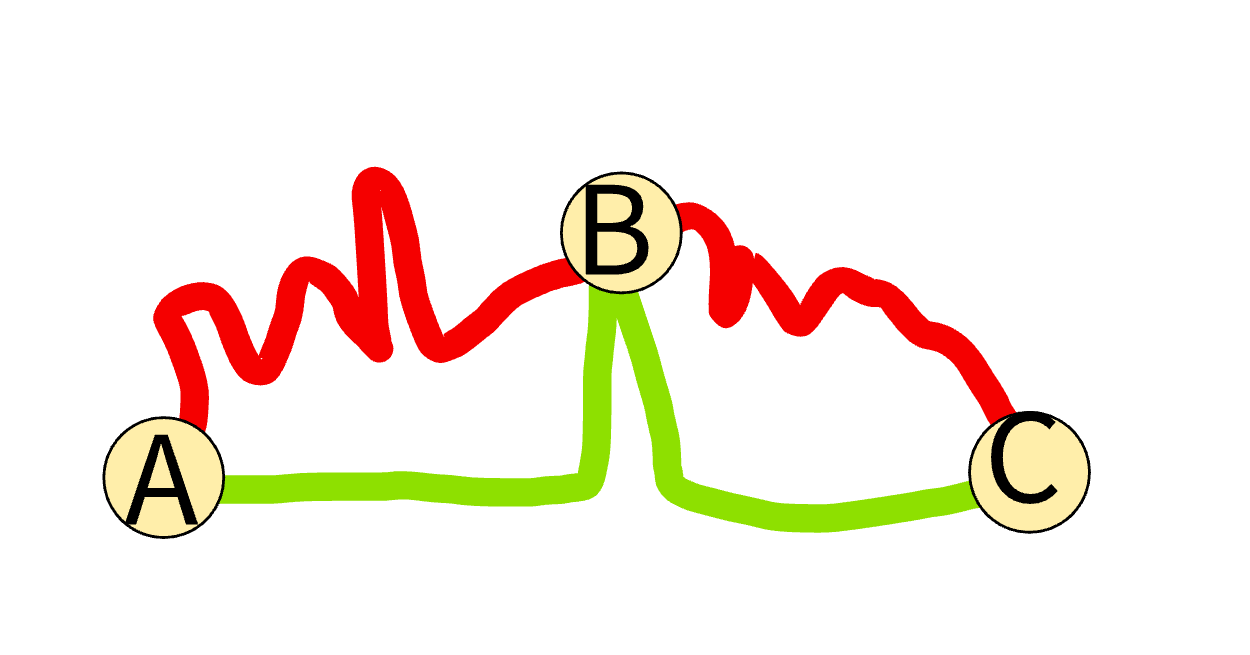
Divide your route into sectors by adding destinations along it then as you get to each one you have the option to continue to the next on your preferred route which you can save, export etc.
I probably haven't explained that too well but try it and you will hopefully see what I mean
I was going to suggest this as it works how the OP wants it to work. Google will only send destinations to your phone and the phone does the route planning.I probably haven't explained that too well but try it and you will hopefully see what I mean
I've managed to create my route via chosen locations, but when I send it to my phone all I see is the route but with no option to start navigating there. I'm assuming My Maps doesn't work as a satnav, or on an iPhone, and is perhaps only suited to printing
Edited by The Gauge on Friday 24th November 12:33
The Gauge said:
I've managed to create my route via chosen locations, but when I send it to my phone all I see is the route but with no option to start navigating there. Or doesn't My Maps work as a satnav?
have you tried using maps by just putting in a destination rather than sending from your phone?Edited by The Gauge on Friday 24th November 11:00
ARHarh said:
have you tried using maps by just putting in a destination rather than sending from your phone?
I wanted to be able to build myth route on my MacBook, then send it to my phone to use as a satnav whilst driving, but I'll have a try at building my route on My Maps on my phone instead and see if that works ARHarh said:
Does it really matter if its a destination or waypoint?
Yes, in as much as with a waypoint you can plot a route and follow it end to end, without having to keep entering new destinations as you go along.So it's just a simple matter of convenience, that really shouldn't be difficult to implement.
The Gauge said:
No, never heard of that, but thanks.
Just had a look and was able to create a route and send it via text to myself. When I open it on my phone I can see the route but there's no way of navigating along it. Was hoping to see the usual 'Start' icon to start driving there.
Typing in a rush, but hopefully you'll be able to follow;Just had a look and was able to create a route and send it via text to myself. When I open it on my phone I can see the route but there's no way of navigating along it. Was hoping to see the usual 'Start' icon to start driving there.
Edited by The Gauge on Thursday 23 November 15:50
Create your map on My Maps and save it.
On your phone open G Maps and tap on Saved.
Next, scroll to the bottom and you'll see a 'Maps' button to the right - tap on this.
You can now select one of your saved maps, and it'll open an overview of your saved map, with your waypoints marked alphabetically and your mapped route in blue.
Tap your first waypoint e.g. "A"
Tap Directions.
Tap Start to begin navigation.
You'll possibly have a choice of routes, depending on road closures, accidents etc etc etc but if everything is clear it'll direct you along your pre-mapped route to Point A. The key thing is you'll always be able to see your pre-mapped route on the map in a different shade of blue so can just follow that even if Google are suggesting a redirect for any reason. So you can always follow your route and you'll always know where you are on it.
When you reach point A you just tap on point B to do the next leg etc etc etc
That's from my head in haste, but hopefully it's enough to guide you through it and you can use it to figure it out.
Gassing Station | Computers, Gadgets & Stuff | Top of Page | What's New | My Stuff